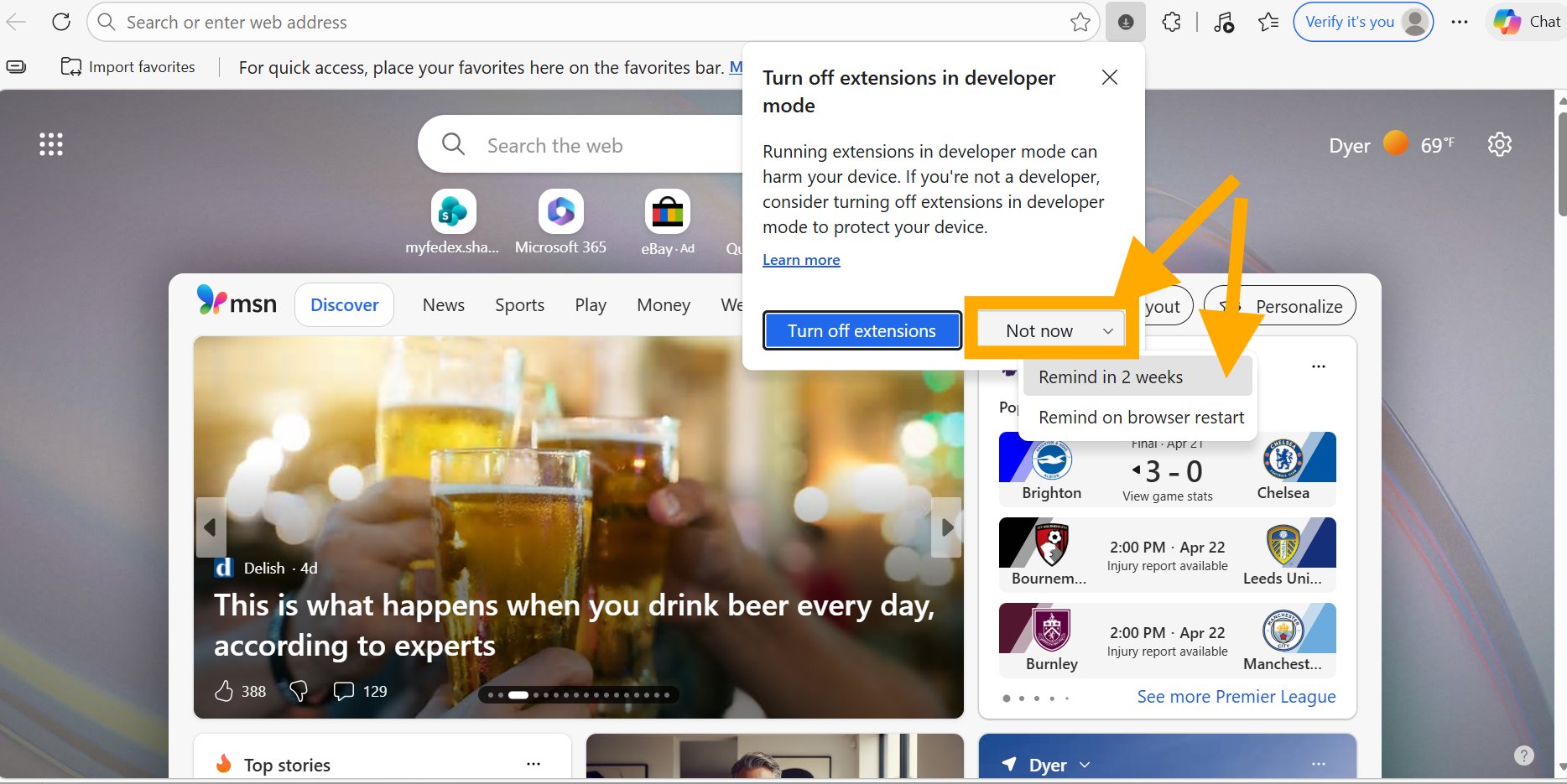
Paradox ATS Bulk Tools
Bulk resume downloads and candidate disposition for Paradox.ai. One extension, two power tools.
Download ExtensionBulk Resume Download
Download as a zip of individual PDFs or a single merged PDF. Filter by stage, set a limit, and page through results.
Bulk Disposition
Move dozens or hundreds of candidates at once. Select candidates, pick a disposition status, and go.
Stage Filtering
Pick which journey stage to scan — Candidate Review, Meets Qualifications, Recruiter Screen, and more.
Fast & Parallel
Processes 5 candidates at a time with automatic retry. Handles 300+ candidate lists with ease.
Installation Guide
Takes about 2 minutes. No coding required. Choose your browser:
Download the extension
Click the Download Extension button above. A file called paradox-tools.zip will download.
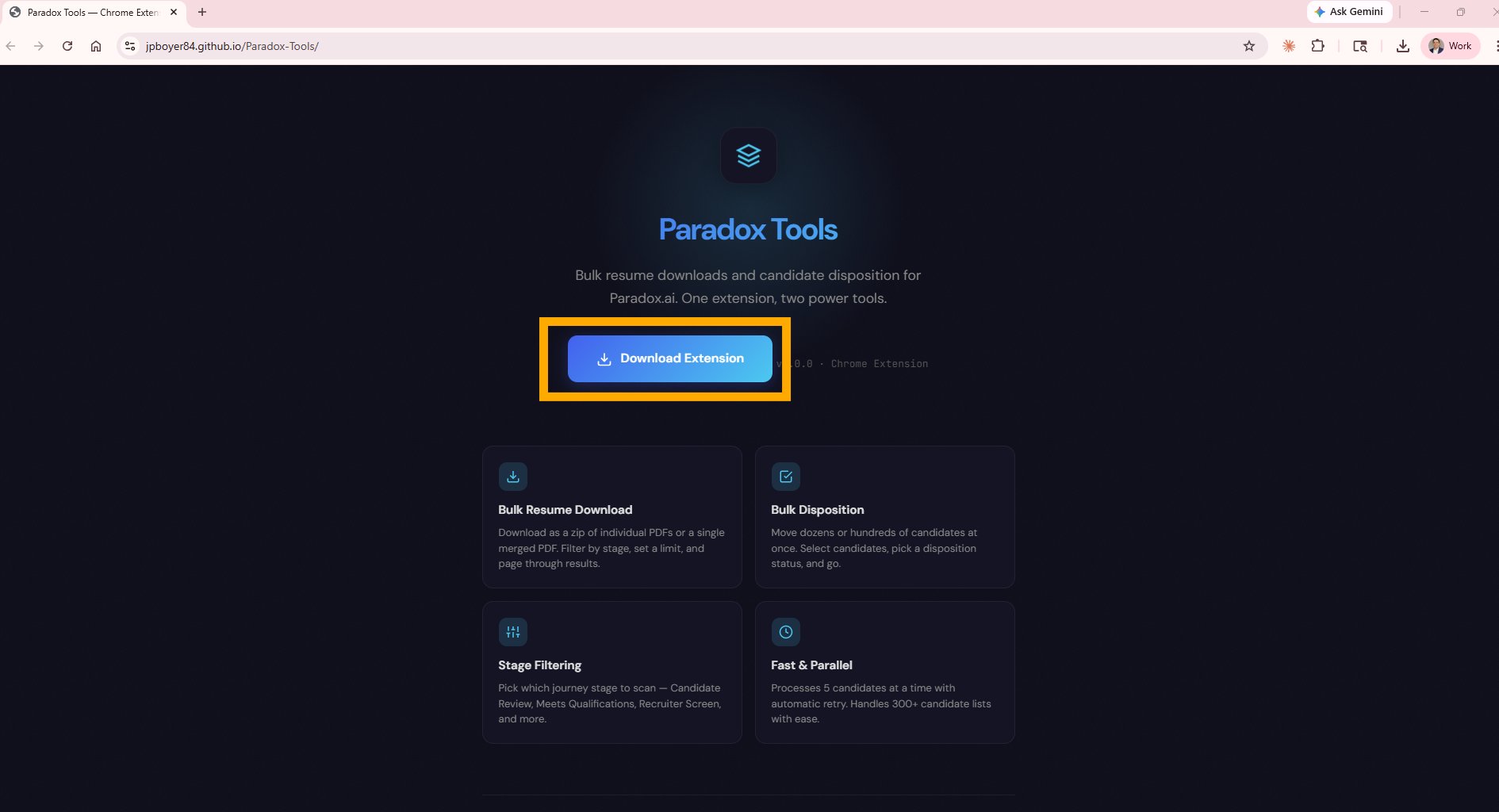
Find the downloaded file
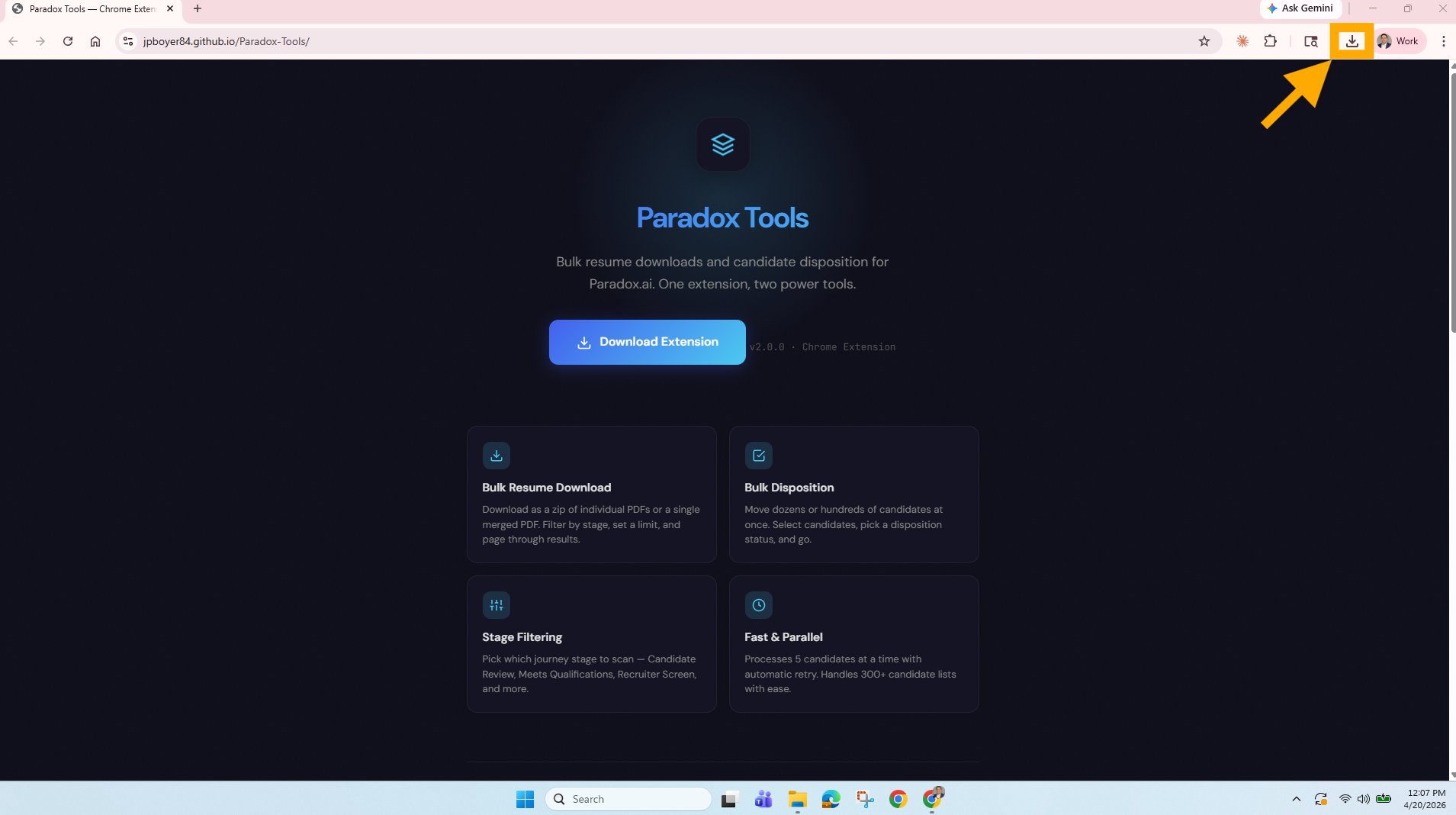
Click the downloads icon in the top-right corner of Chrome, then click the folder icon next to paradox-tools.zip to open it in File Explorer.
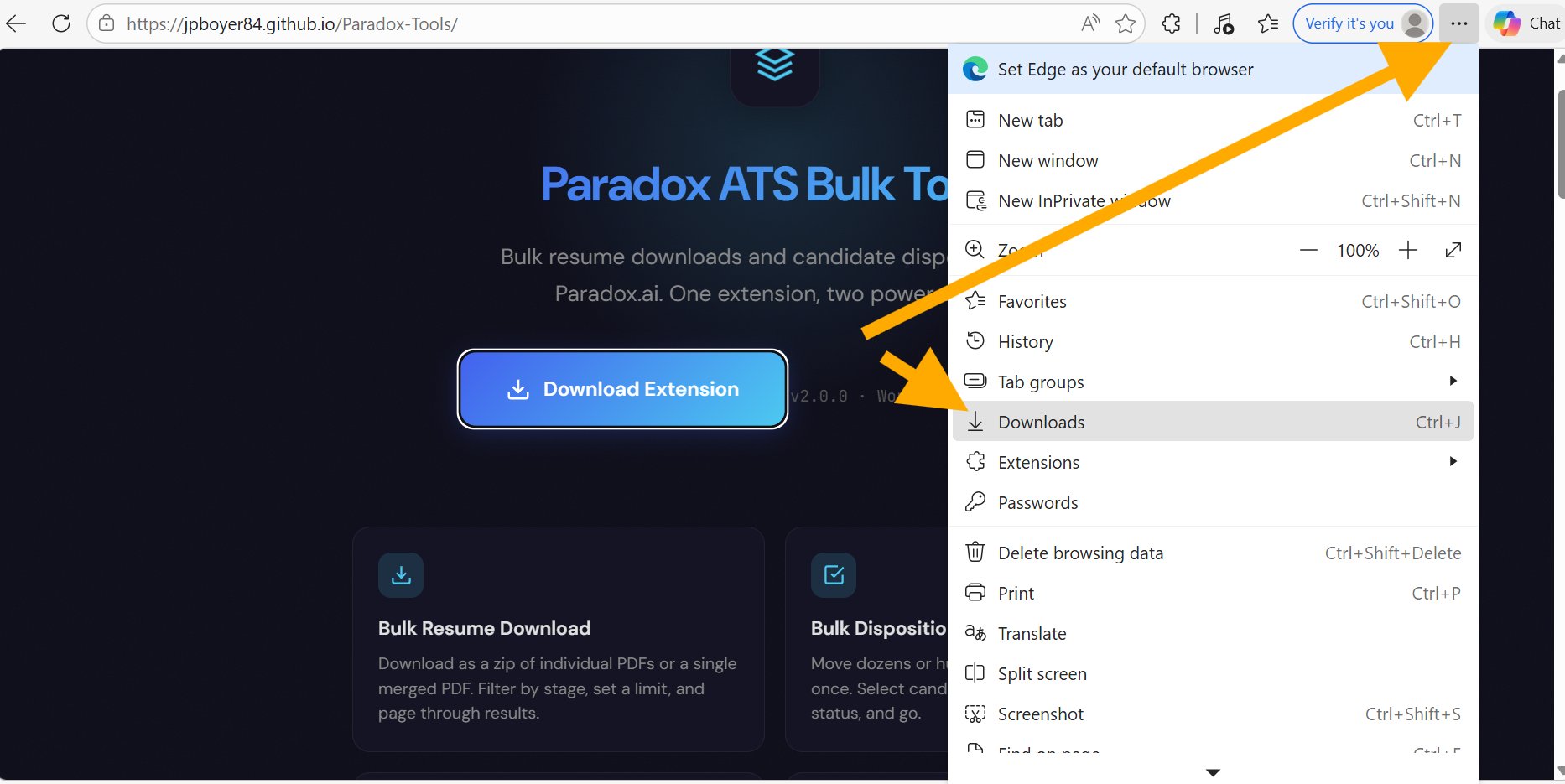
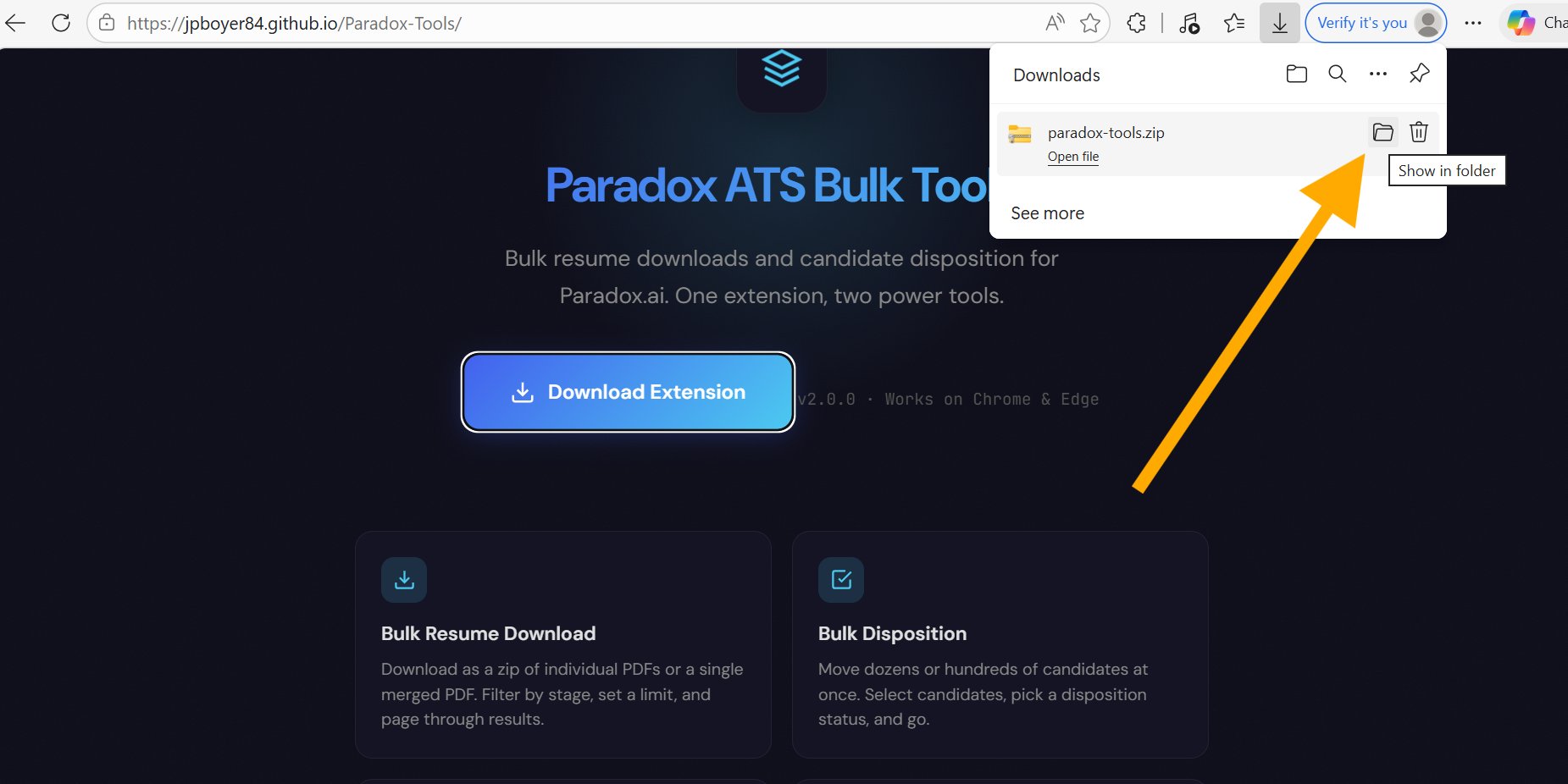
Click the three-dot menu (⋯) in the top-right corner of Edge, then click Downloads. Find paradox-tools.zip and click the folder icon to open it in File Explorer.
Move the zip to Documents
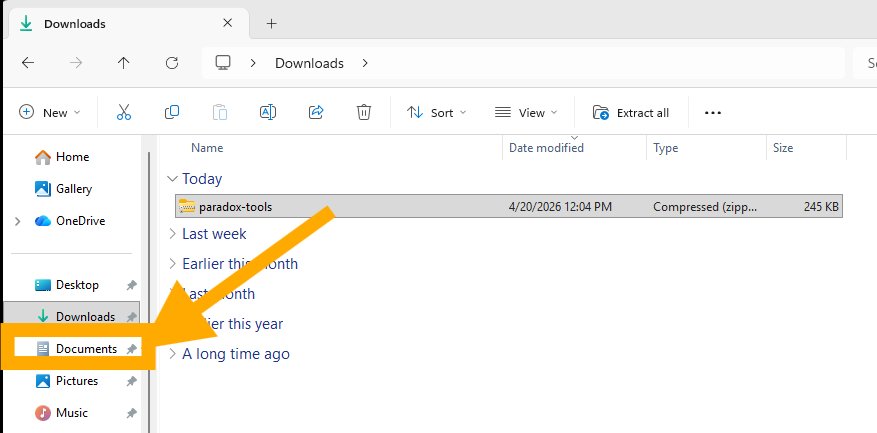
Drag the paradox-tools.zip file from Downloads into your Documents folder. This keeps it in a safe place that won't get accidentally deleted.
Unzip the file
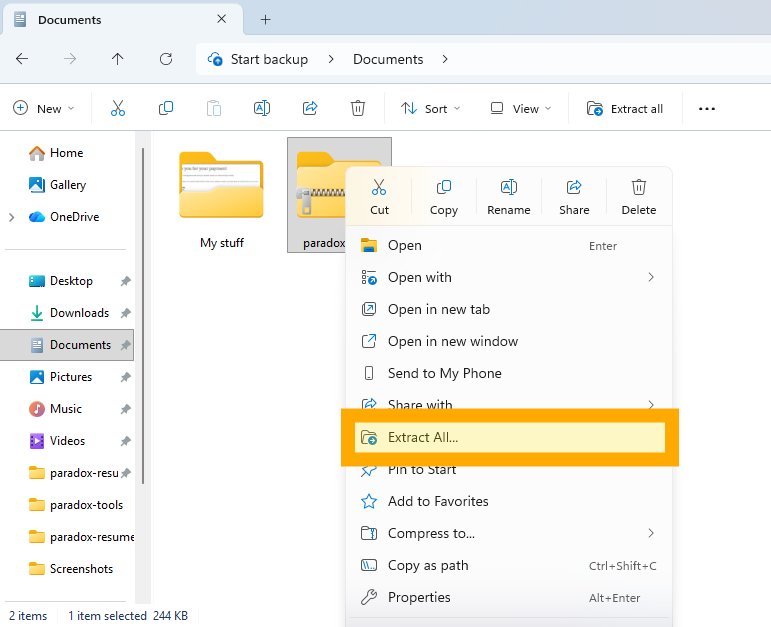
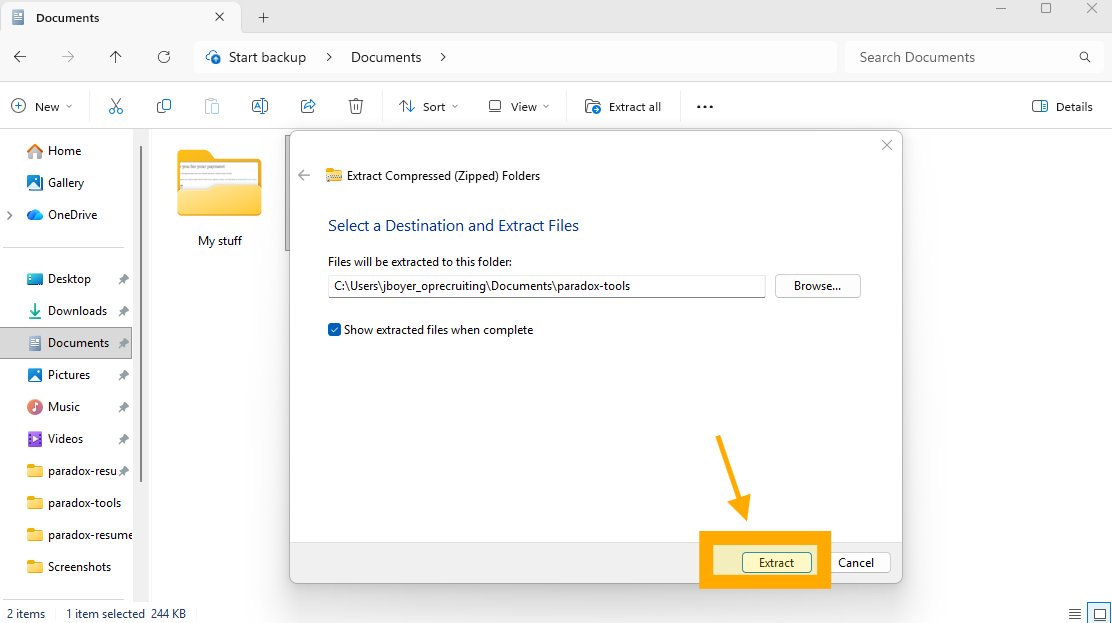
Right-click the zip file and select Extract All..., then click Extract.
Open ChromeEdge Extensions
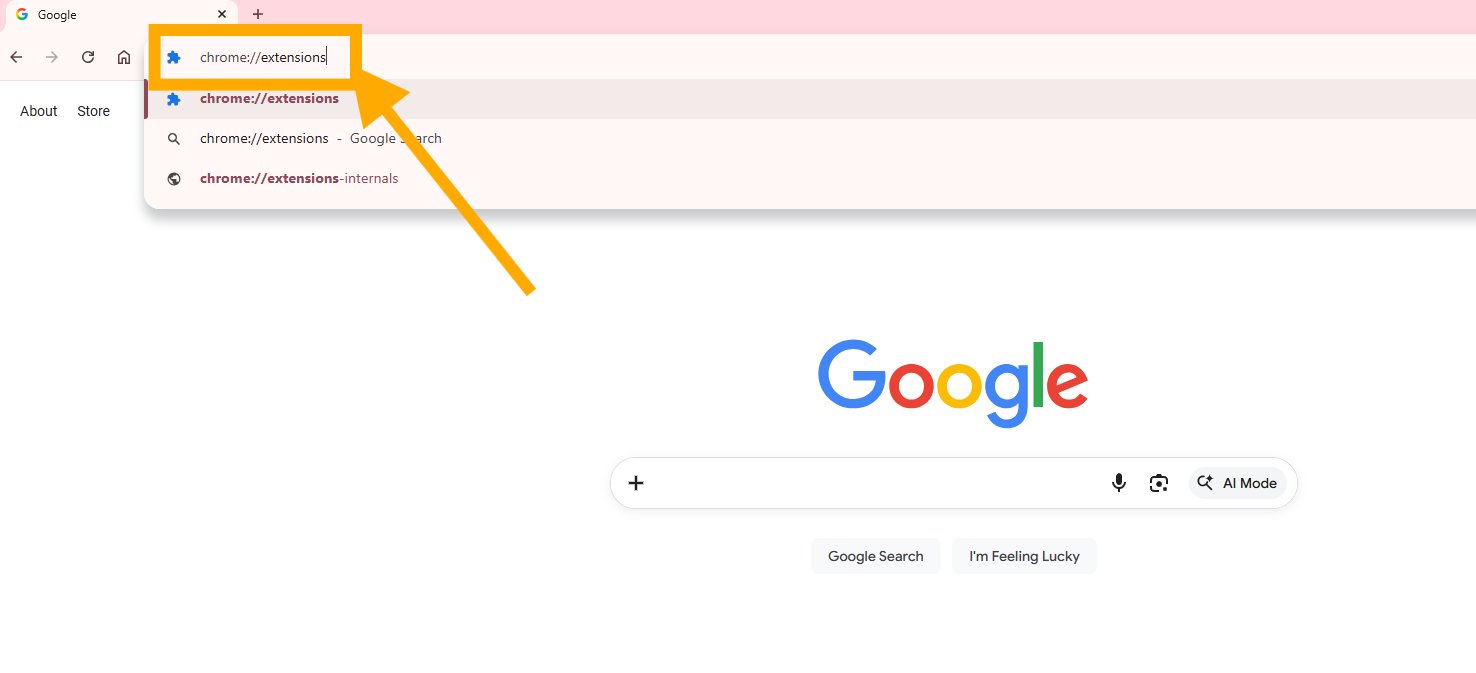
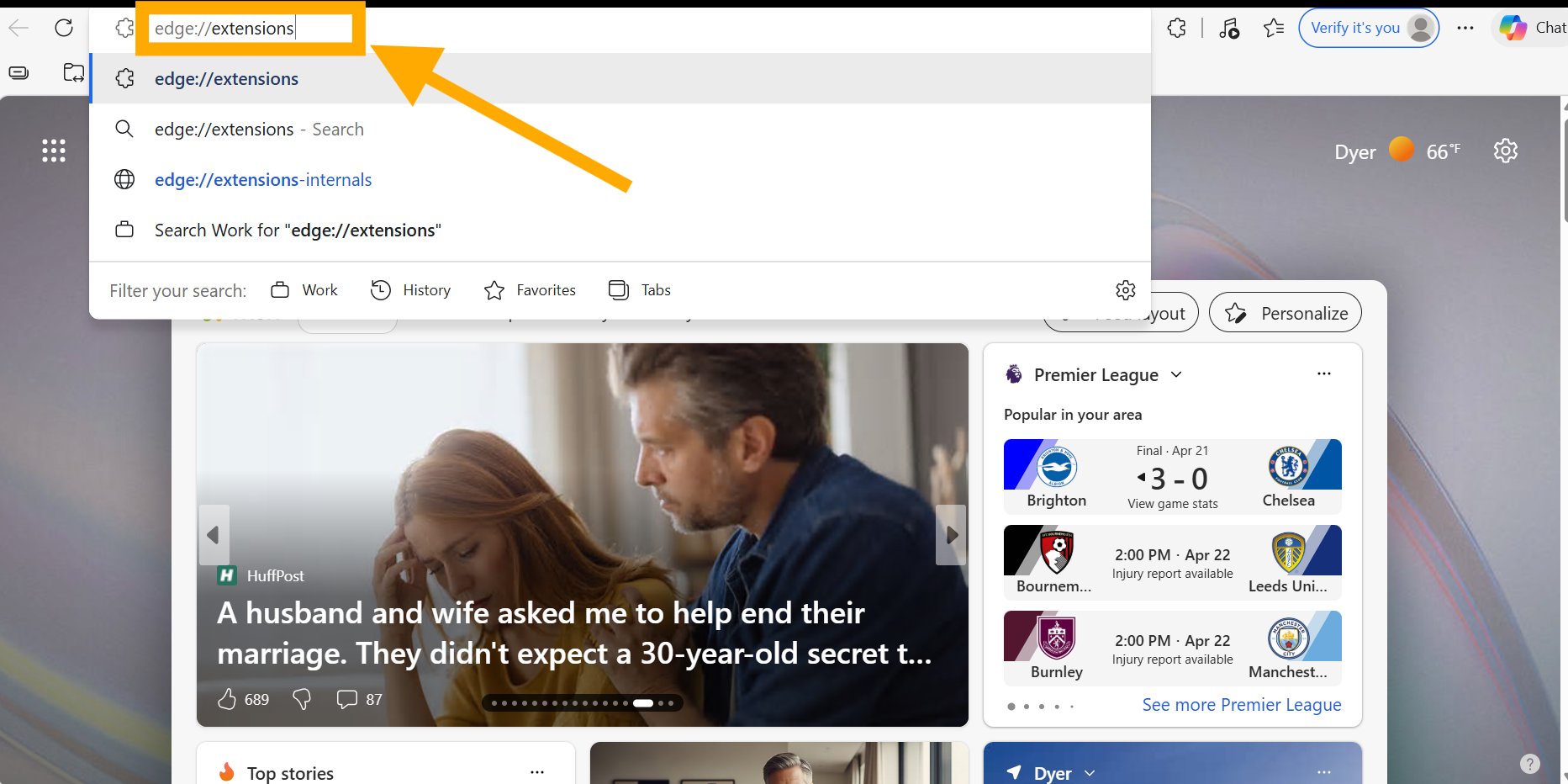
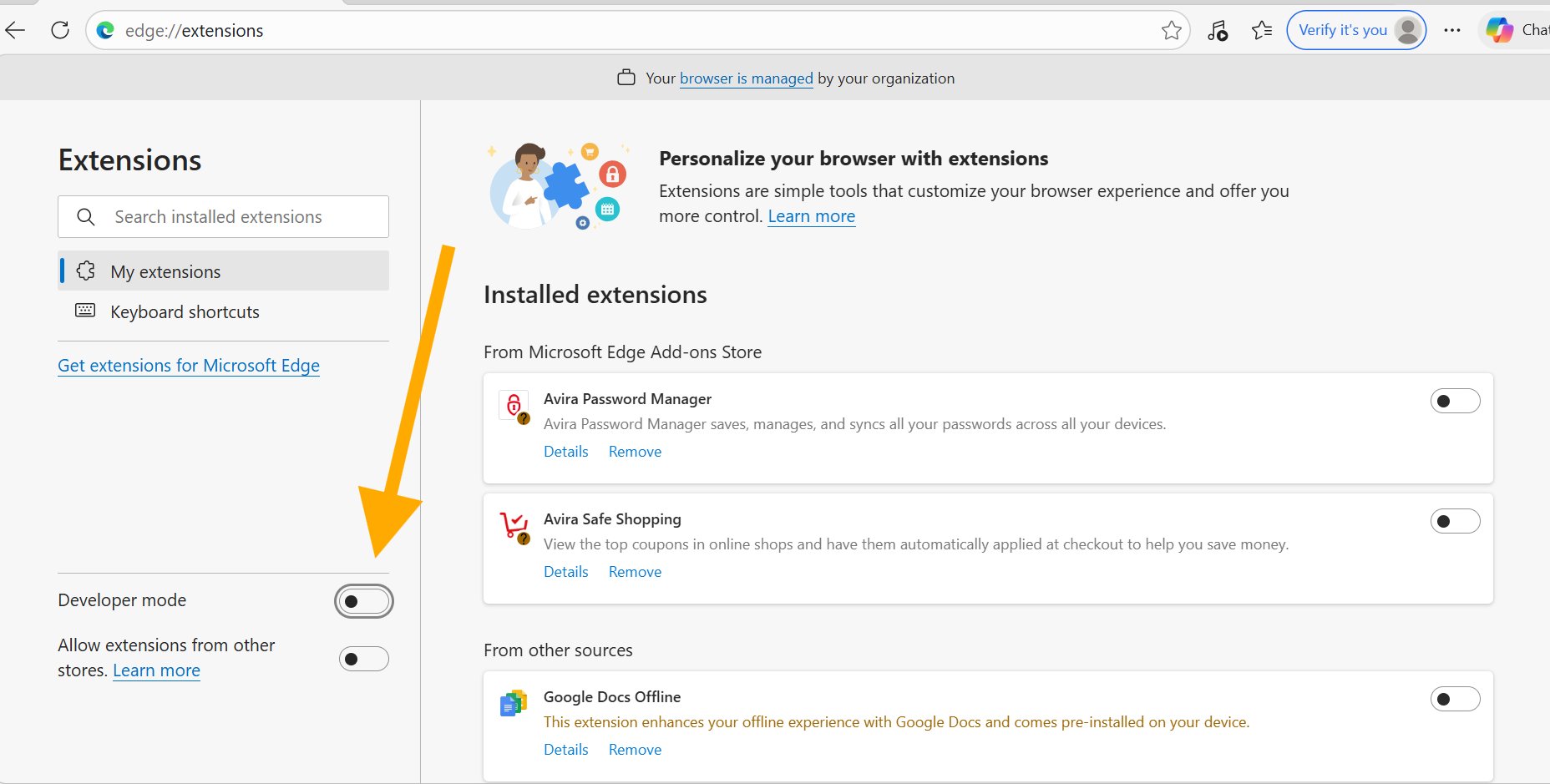
Type chrome://extensionsedge://extensions into the address bar and press Enter.
Enable Developer Mode
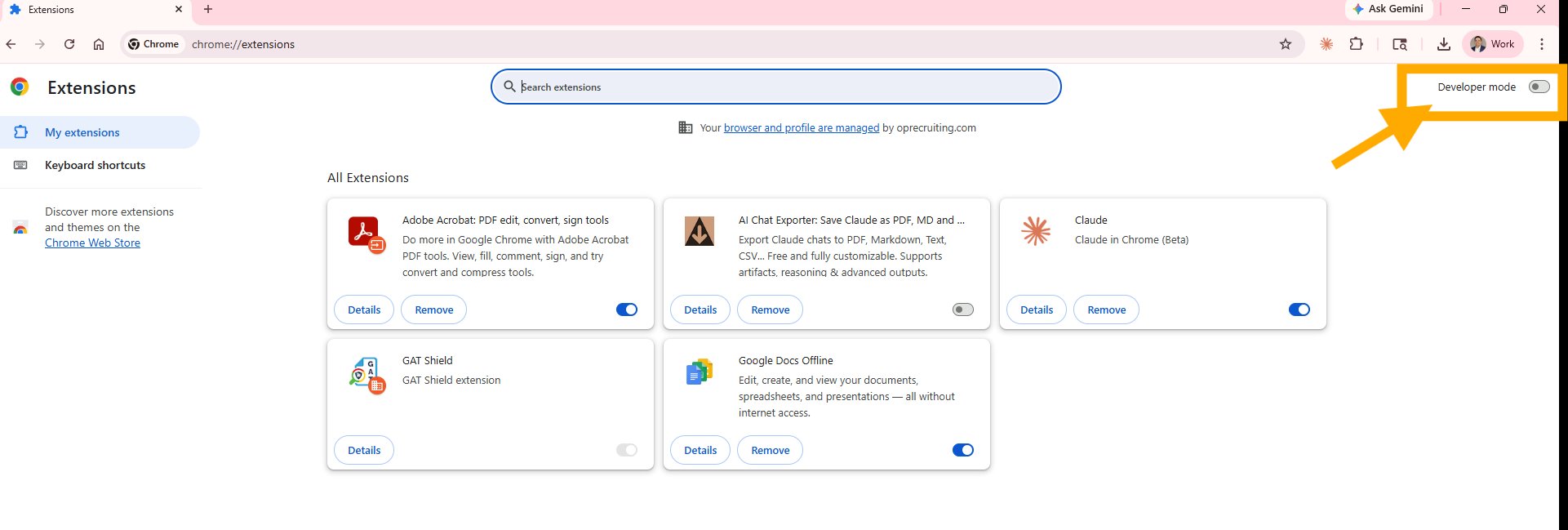
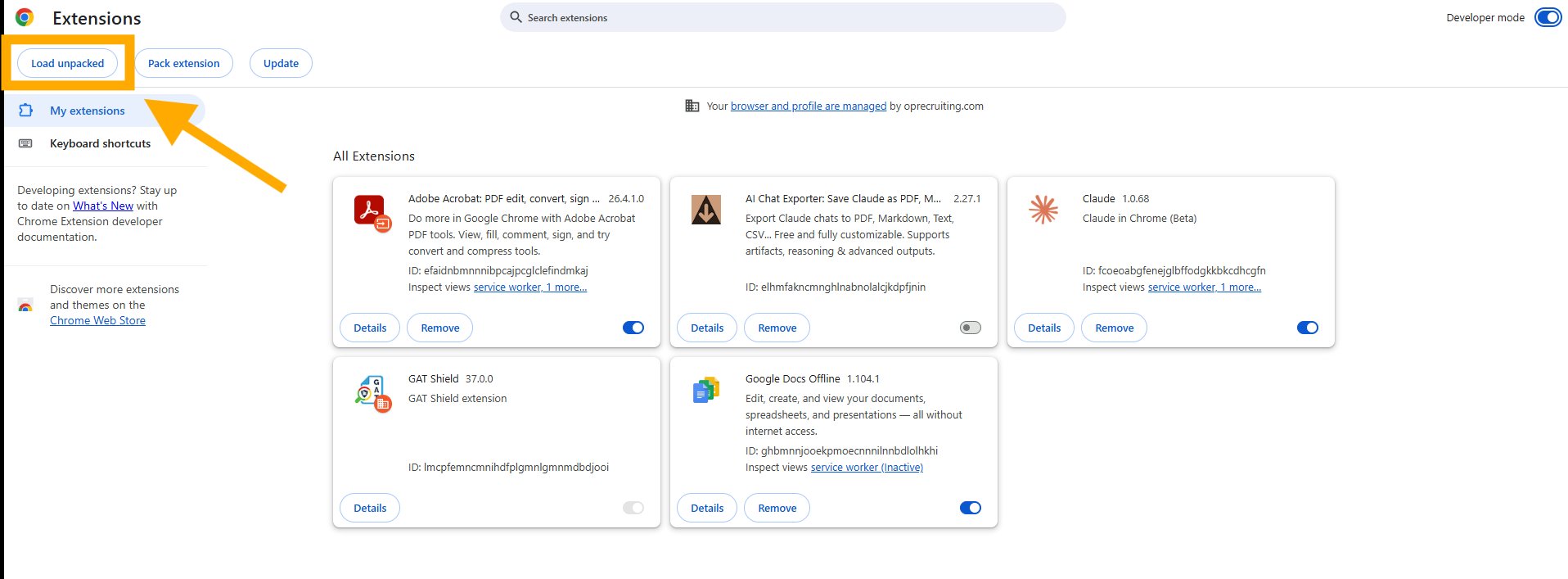
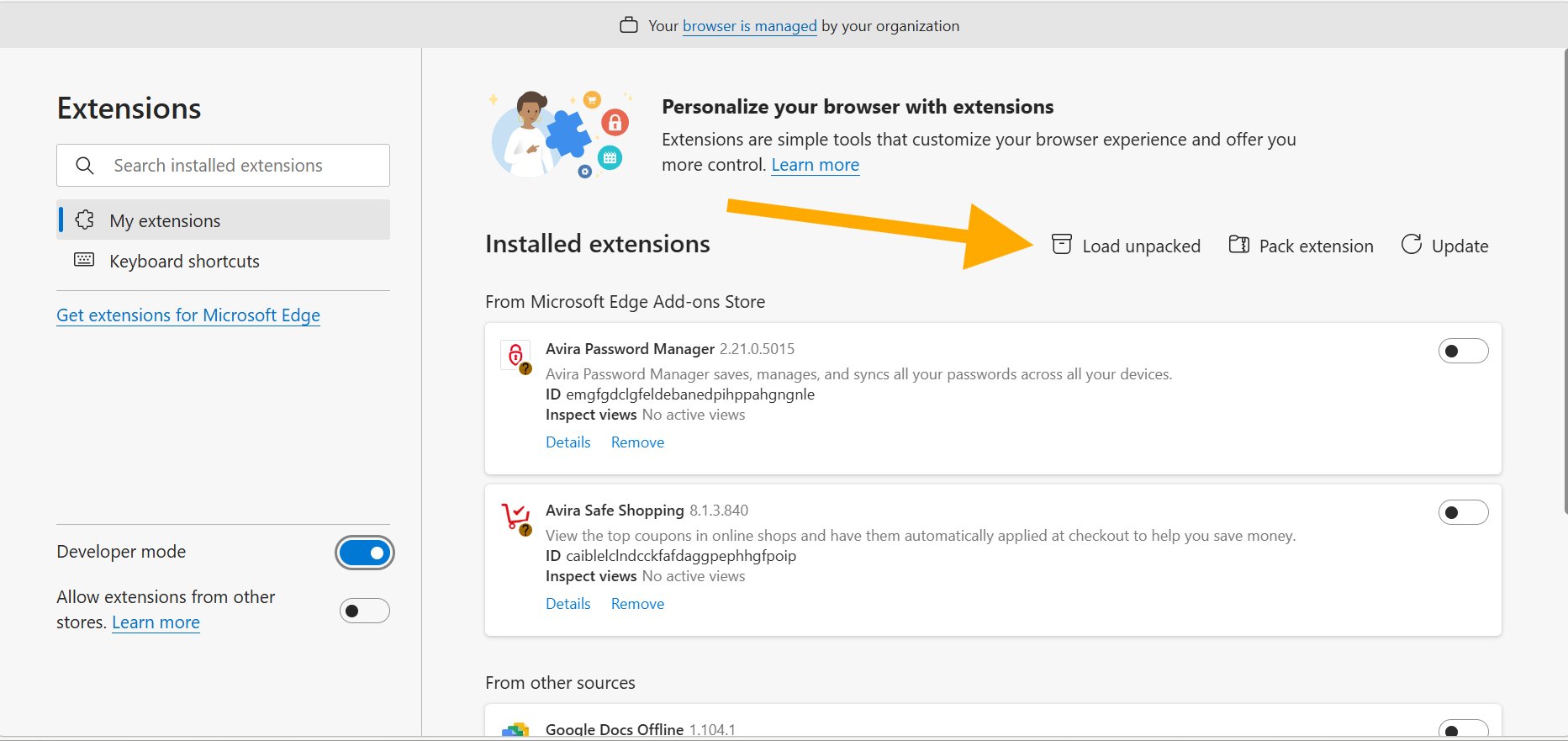
Toggle Developer mode ON in the top-right cornerin the bottom-left sidebar. New buttons will appear.
Load the extension
Click Load unpacked.
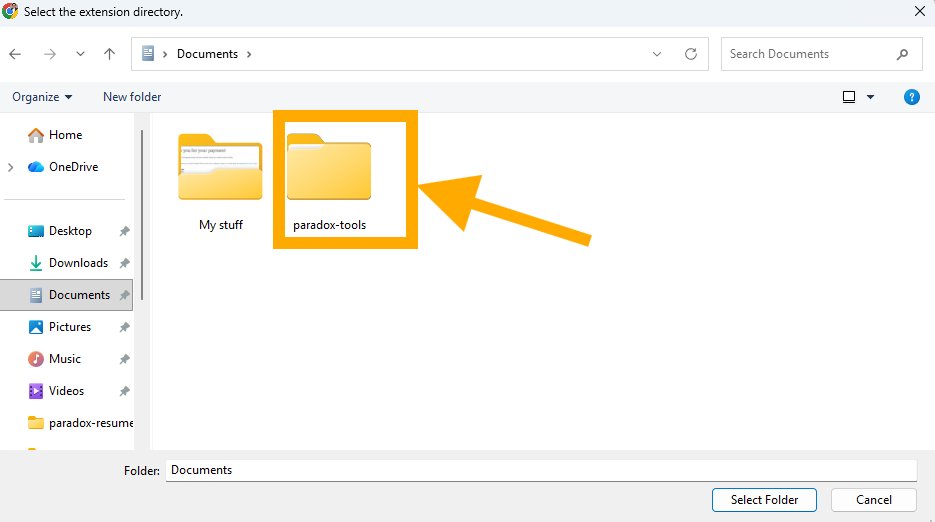
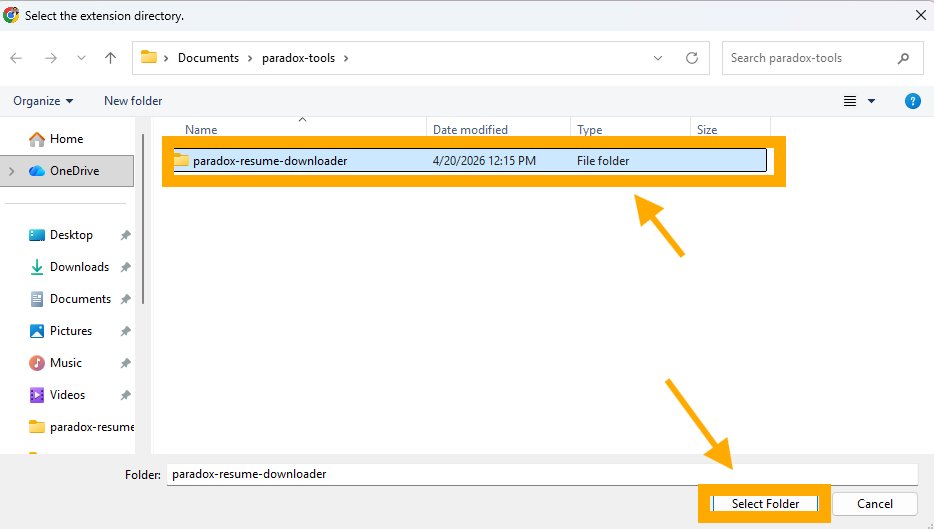
Select the folder
Navigate to your Documents folder, open the paradox-tools folder, select the paradox-resume-downloader folder inside, and click Select Folder.
You're done!
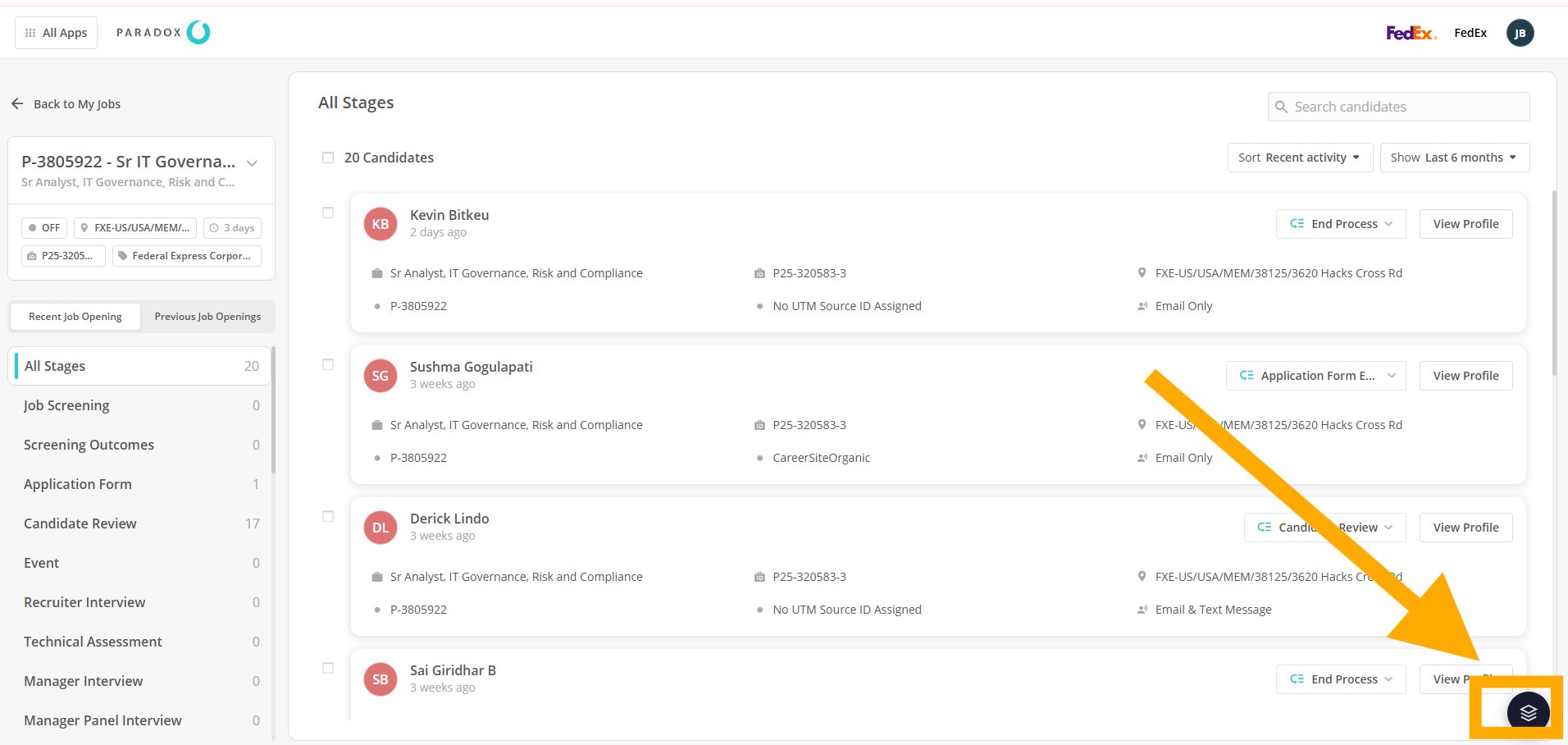
Go to Paradox.ai and open any job's Centric View. You'll see the Paradox ATS Bulk Tools icon in the bottom-right corner — click it to get started.
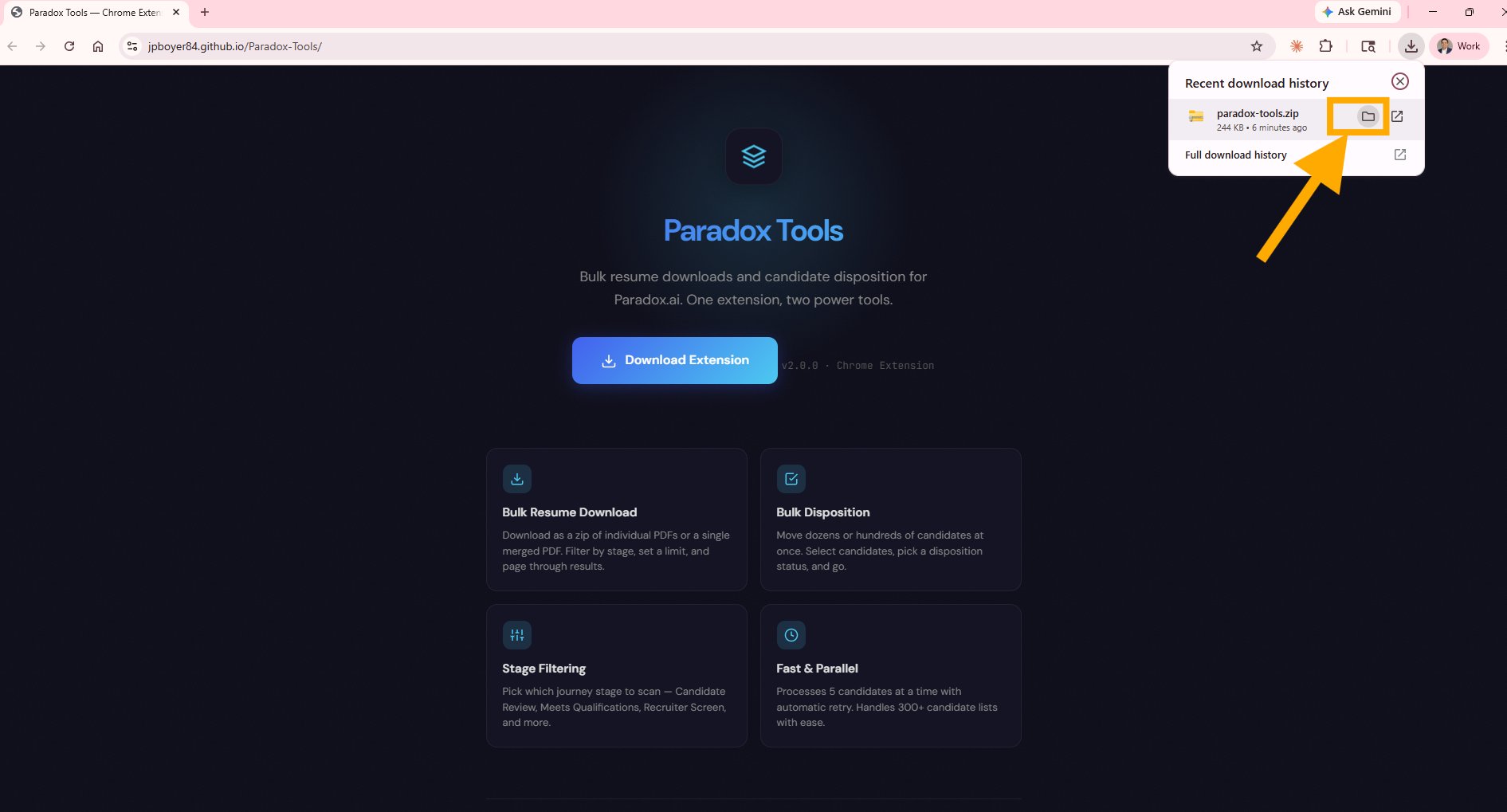
Dismiss the Developer Mode warning
Edge may show a popup warning about developer mode extensions. Click the Not now dropdown and select Remind in 2 weeks (or Remind on browser restart). This is normal and expected — it just means the extension wasn't installed from the Edge Add-ons Store.